Steps to do after minimal installation of RHEL/CentOS
Steps to Do After Minimal RHEL/CentOS 7 Installation
Configure Network with Static IP Address
First thing you need to do is to set the static ip address for the system.
Use the following command to check your network adapter name.
[root@localhost ~]# ip a
Now you need to edit the network configuration file
[root@localhost ~]# vi /etc/sysconfig/network-scripts/ifcfg-eno16777736
Now add the following lines to the file
ONBOOT=yes
BOOTPROTO=static
IPADDR=192.168.5.123
NETMASK=255.255.255.0
GATEWAY=192.168.5.1
DNS1=8.8.8.8
DNS2=8.8.4.4
Now save the file and exit.
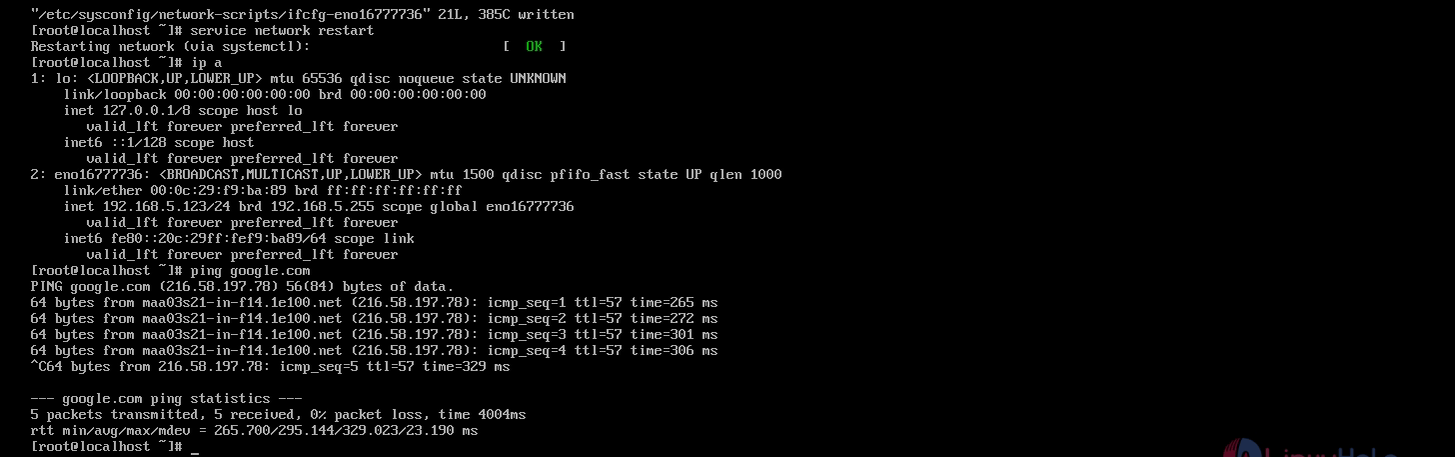
Restart the network service
Execute the following command to restart the network service.
[root@localhost ~]# service network restart
Set Hostname of Server
To check the current hostname use the following command
[root@localhost ~]# echo $HOSTNAME
Now you can edit the /etc/hostname file to change the hostname of the server

After changing the hostname, verify the hostname using the following command
[root@localhost ~]# hostname

Update CentOS Minimal Install
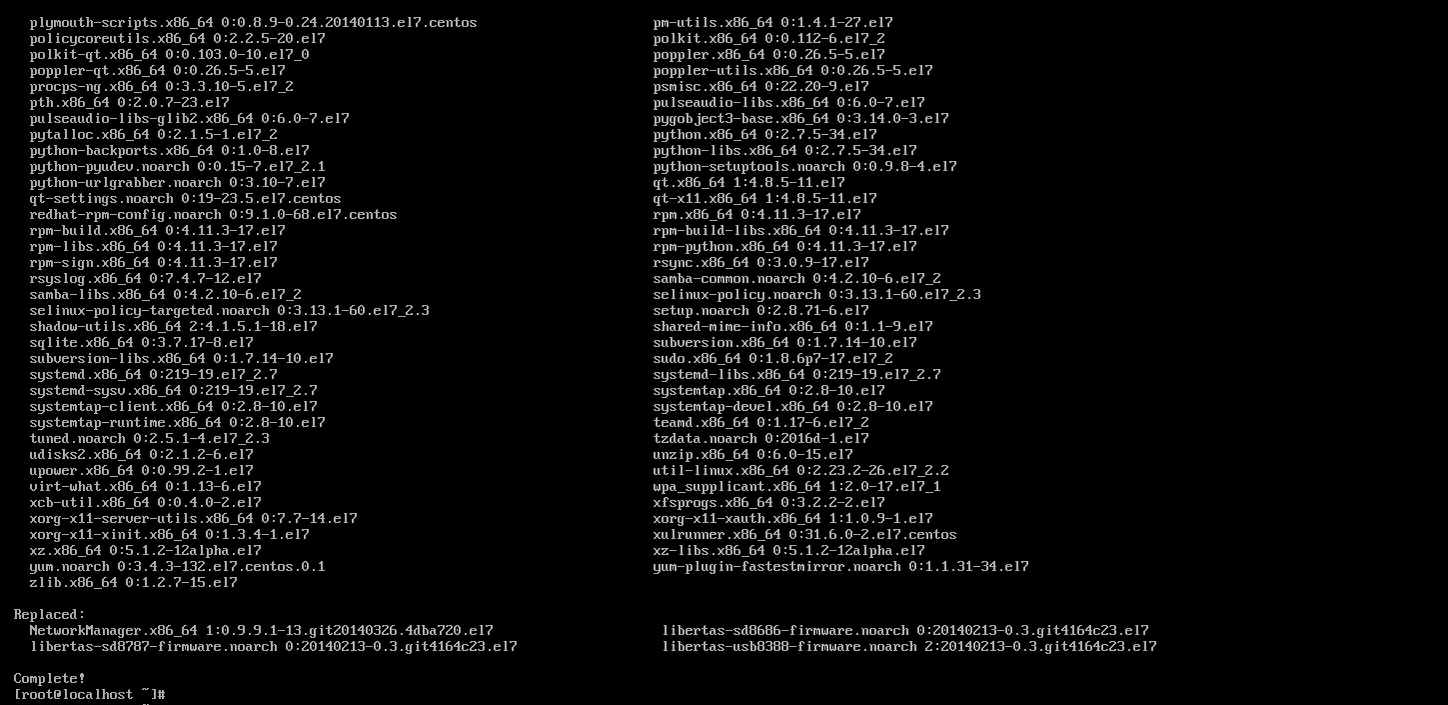
Update your system by executing the following command
[root@localhost ~]# yum update
Install Command Line Web Browser Links
In CentOS 7 minimal there is no GUI, to browse the internet you can use only terminal.
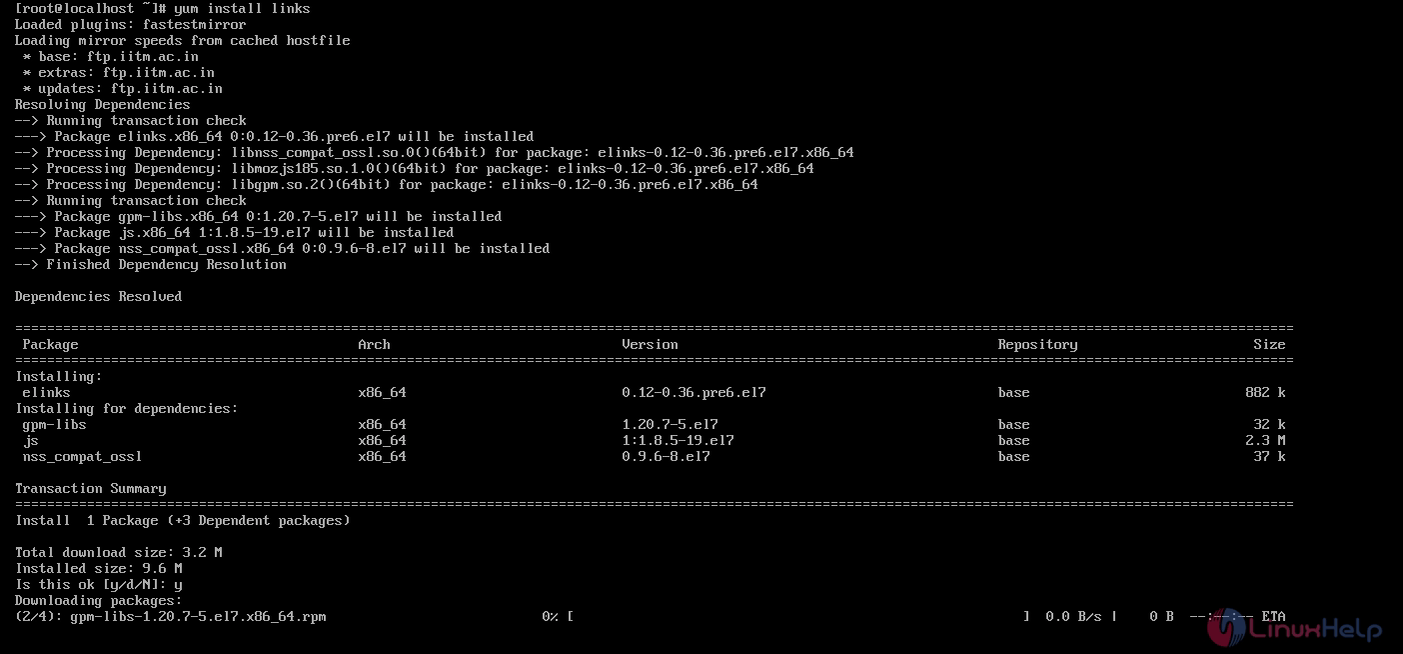
To install links web browser
[root@localhost ~]# yum install links
Install Apache HTTP Server
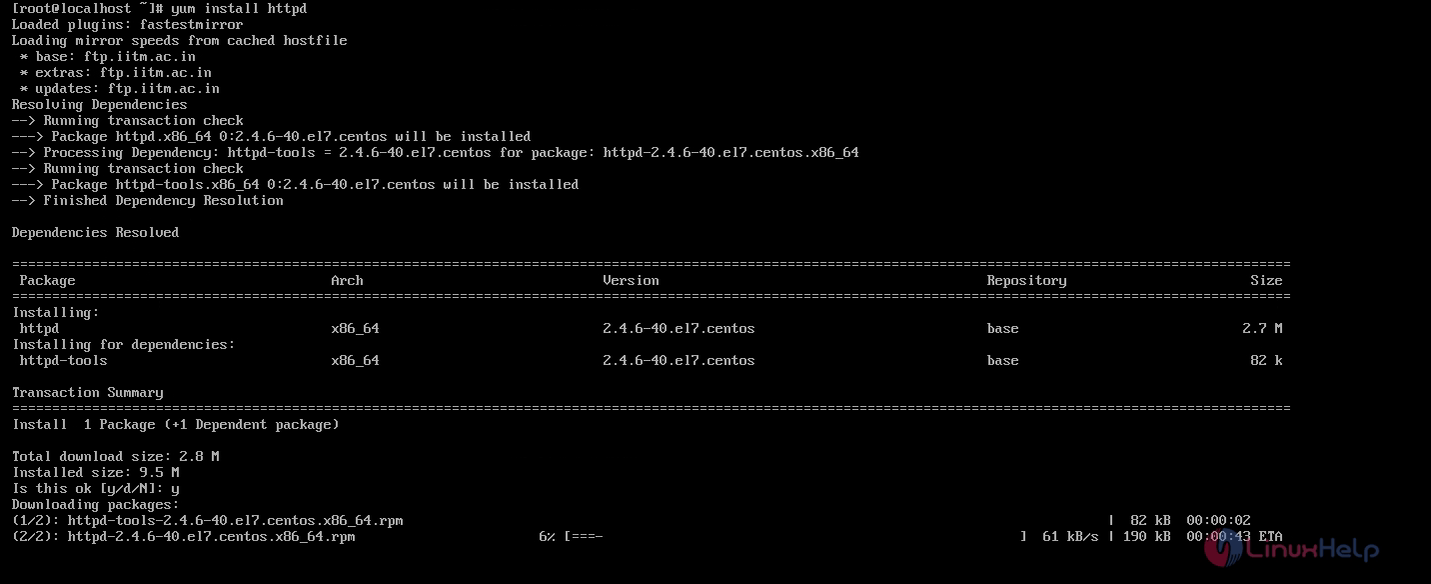
Use the following command to install httpd server
[root@localhost ~]# yum install httpd
To allow httpd service through firewall
[root@localhost ~]# firewall-cmd --add-service=http
[root@localhost ~]# firewall-cmd --reload
Now add the httpd service to start automatically when system boots.
[root@localhost ~]# systemctl start httpd.service
[root@localhost ~]# systemctl enable httpd.service

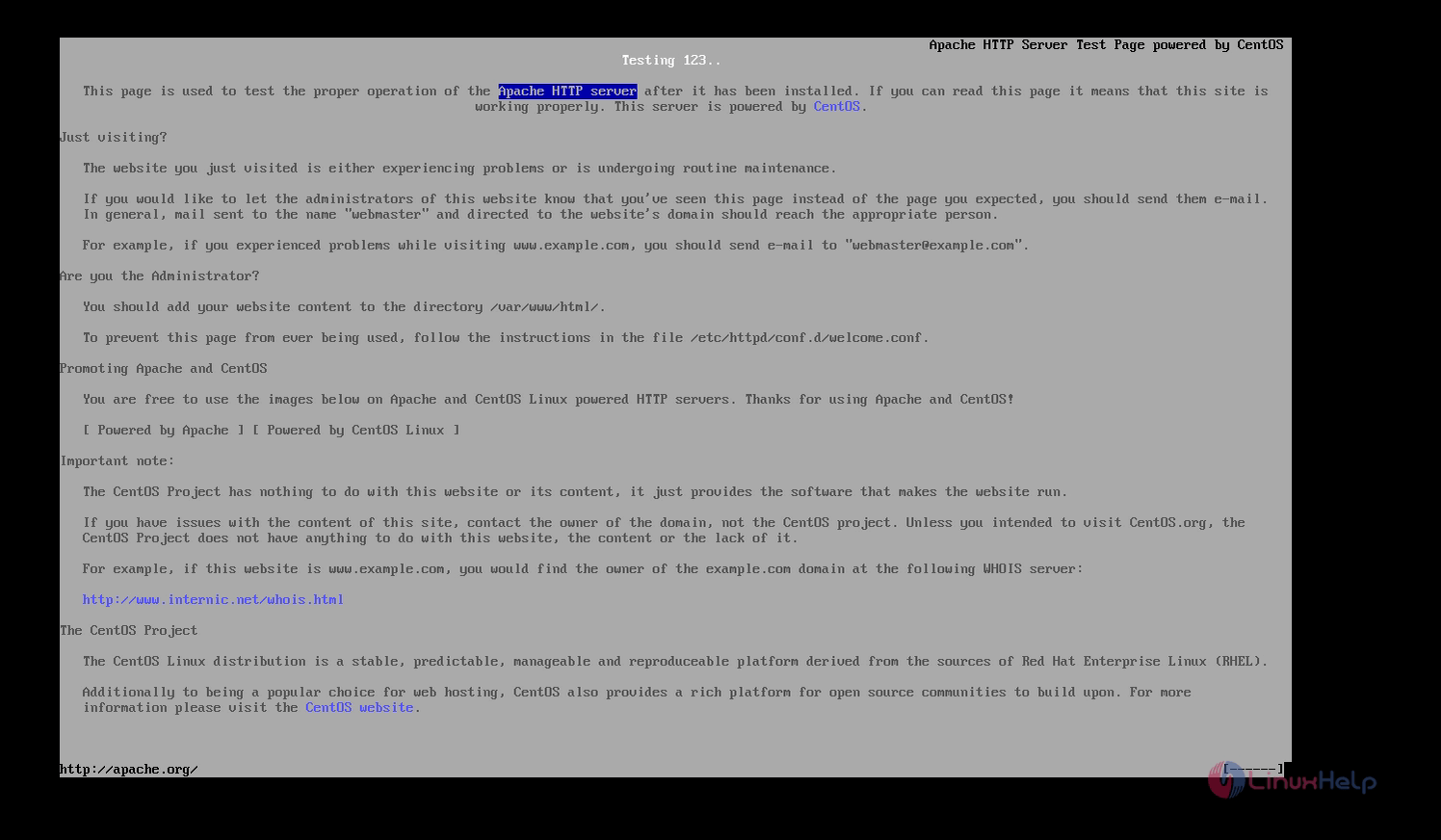
Verify the Apache HTTP Server by using links command line web browser
[root@localhost ~]# links 127.0.0.1
Install MariaDB Database
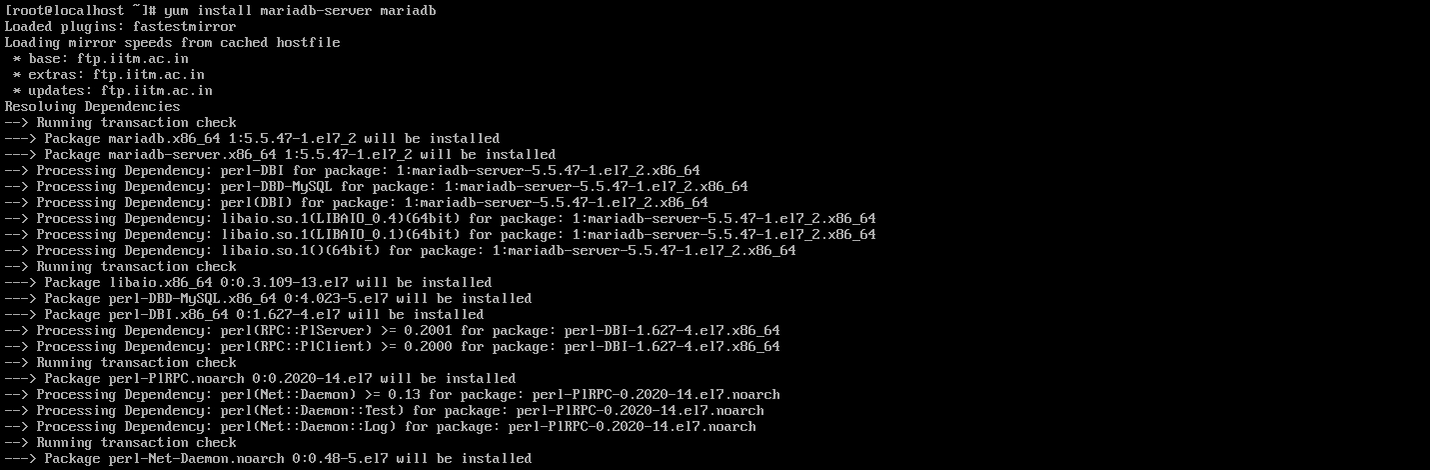
Run the following command to install MariaDB
[root@localhost ~]# yum install mariadb-server mariadb
Start and configure MariaDB server to start automatically at boot.
[root@localhost ~]# systemctl start mariadb.service
[root@localhost ~]# systemctl enable mariadb.service
Allow service MariaDB through firewall.
[root@localhost ~]# firewall-cmd --add-service=mysql

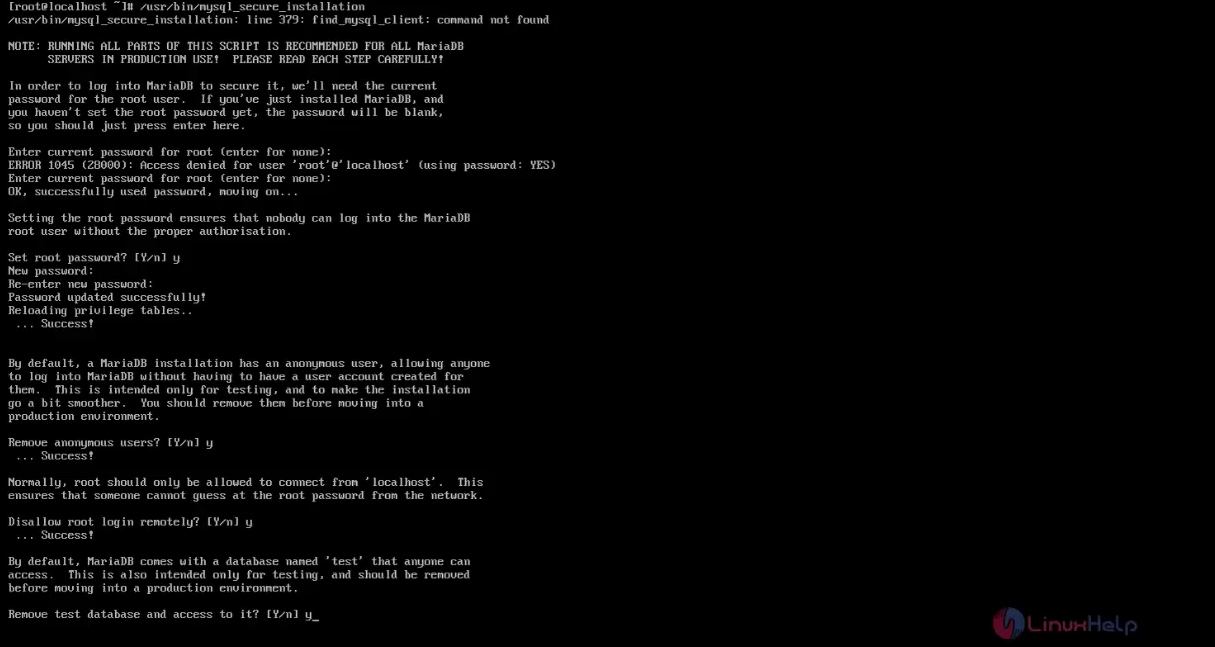
To secure MariaDB server
Execute the following command to secure MariaDB server.
[root@localhost ~]# /usr/bin/mysql_secure_installation
Install and Configure SSH Server
SSH server will be installed during the minimal installation
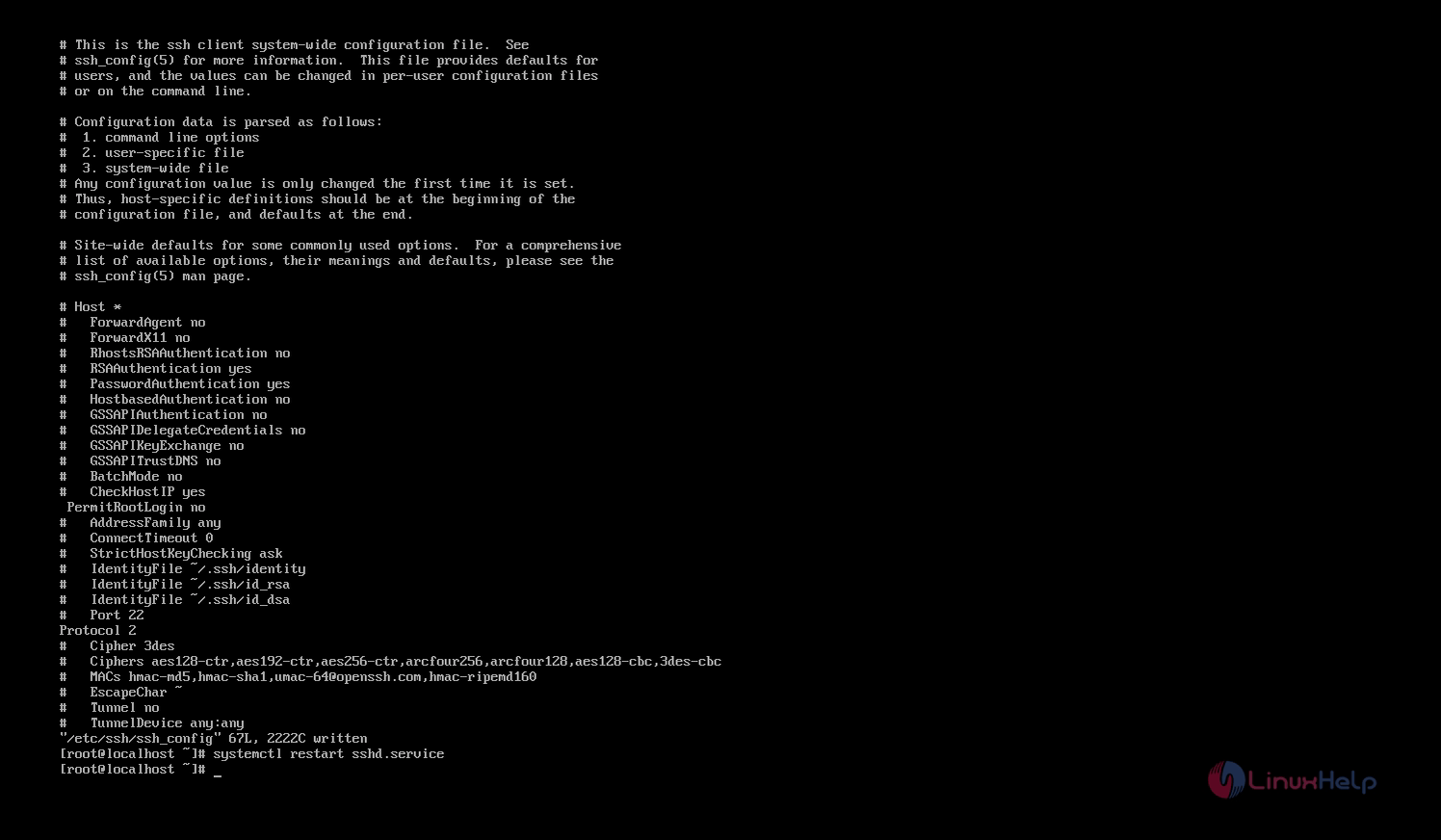
Now you need to edit the ssh configuration file
[root@localhost ~]# vi /etc/ssh/ssh_config
Change the desired port number with the default port number “ 22”
Uncomment the protocol and remove 1 from the protocol so that protocol “ 2” is used which is more secure than protocol 1.
Change the permit rootlogin to “ no” from the default yes
After editing save the file and exit
Now restart the ssh server
[root@localhost ~]# systemctl restart sshd.service
Install GCC (GNU Compiler Collection)
GCC stands for GNU Compiler Collection developed by GNU Project that support various programming languages. It is installed by default in CentOS Minimal Install,if not installed. To install gcc compiler run the below command.
[root@localhost ~]# yum install gcc
Install Java
To install java, run the following command
[root@localhost ~]# yum install java

To check the java version
Execute the following command to check the java version.
[root@localhost ~]# java -version

Installing Wget
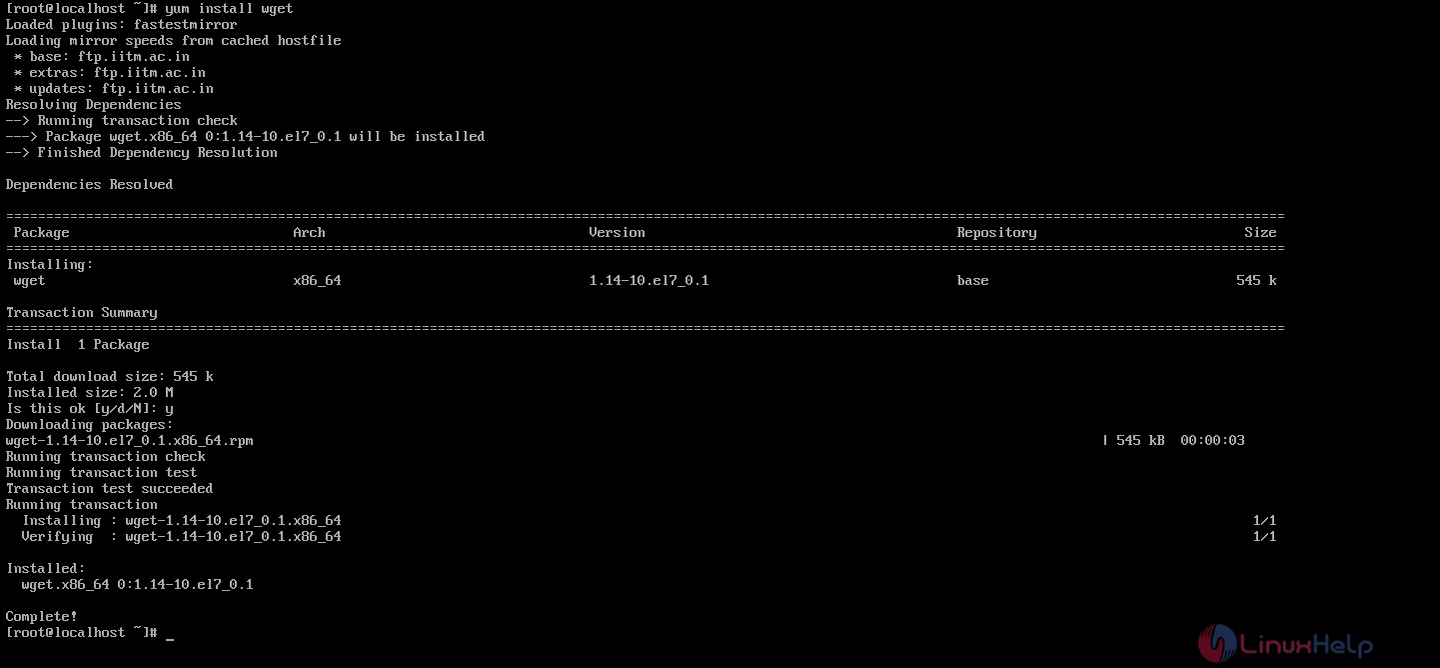
wget is a command line utility that downloads content from web servers. It is an important tool you must have to download web contents or any files using wget command.
To install wget
[root@localhost ~]# yum install wget
Installing Telnet
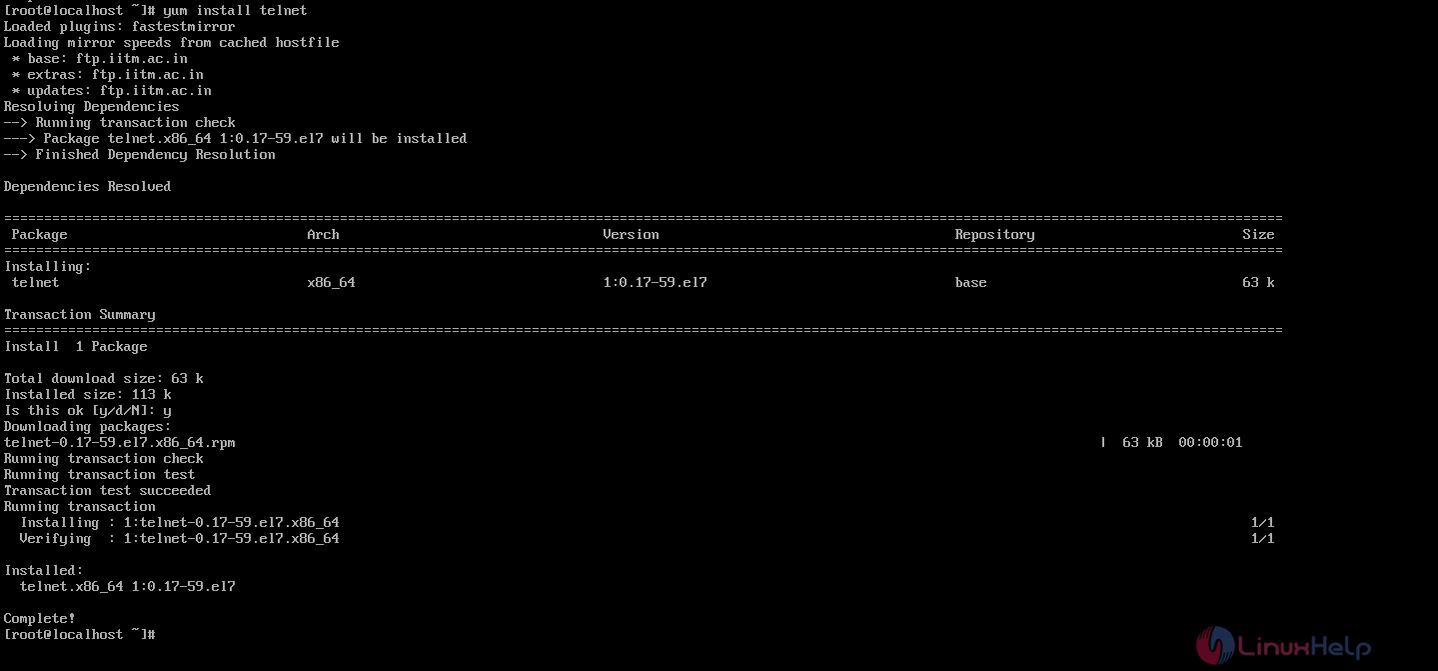
To install Telnet, run the following command
[root@localhost ~]# yum install telnet
Enable Third Party Repositories
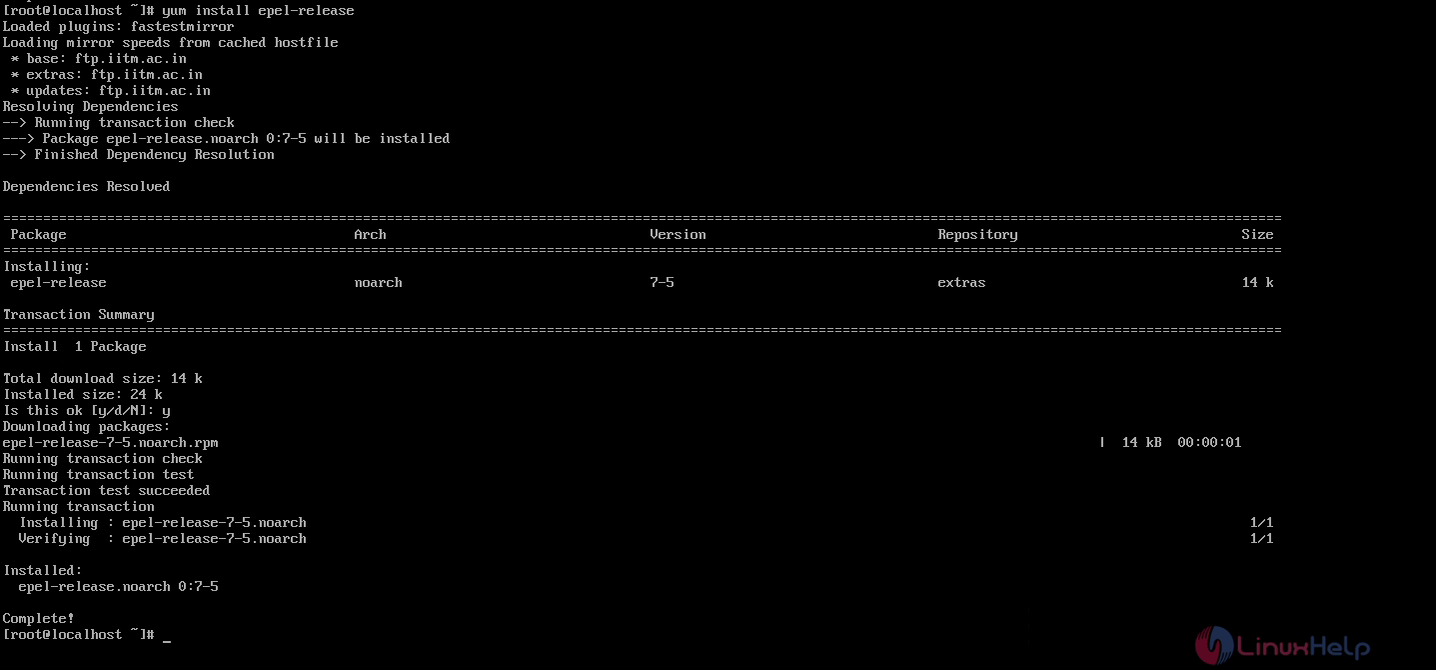
To download third party tools and packages you need third party repositories
To install
[root@localhost ~]# yum install epel-release
Install 7-zip
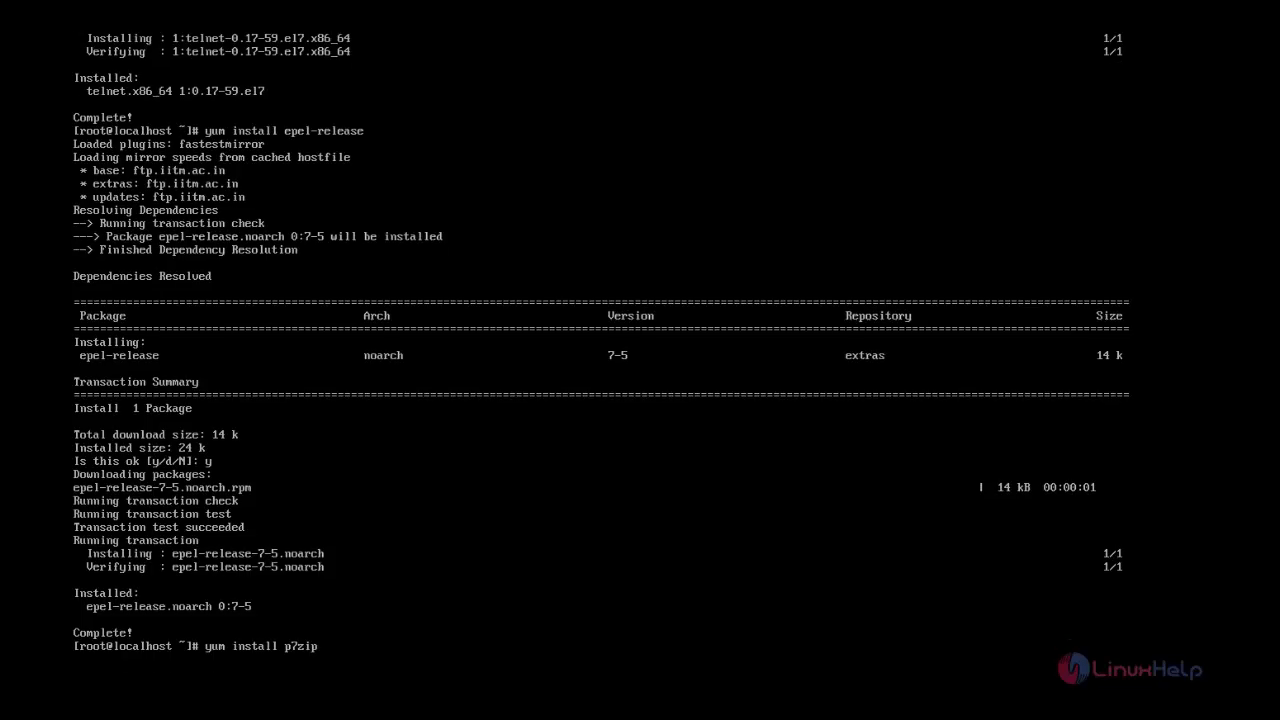
7-zip is tool which compress and extract files of all known types.
[root@localhost ~]# yum install p7zip
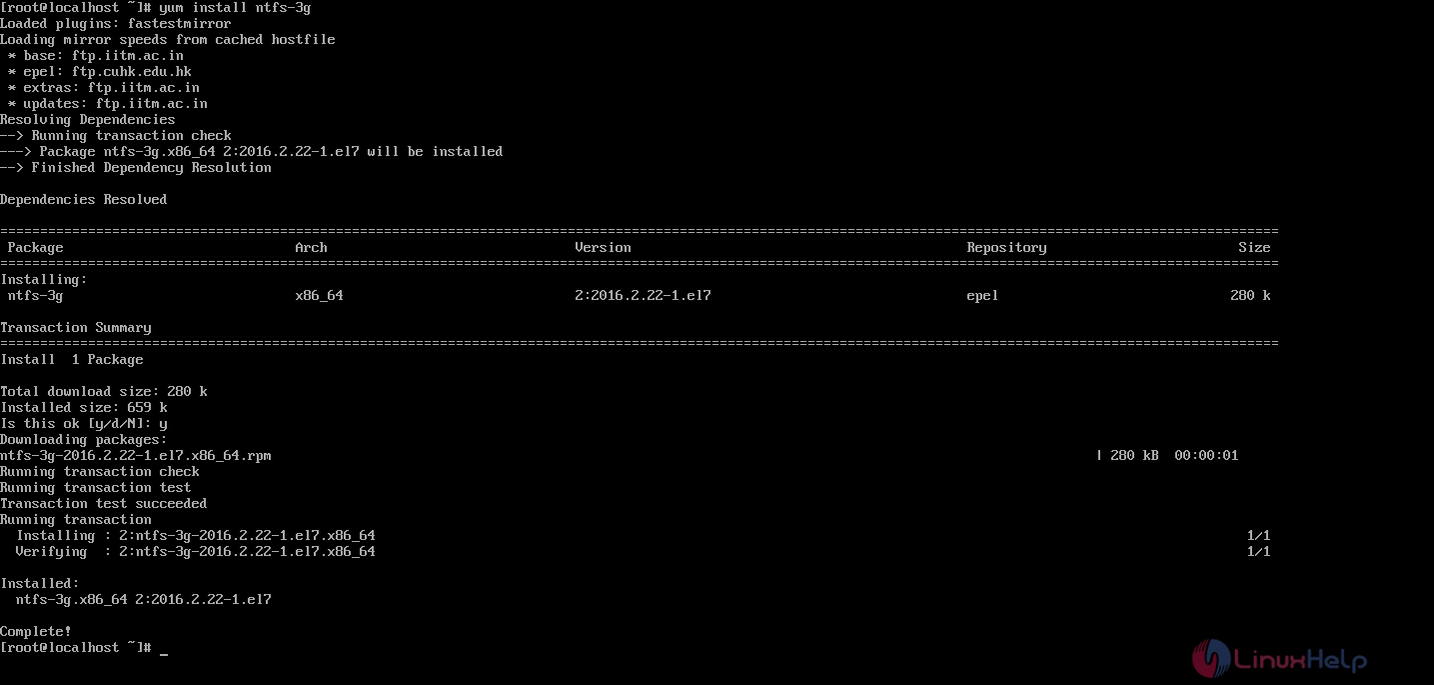
Install NTFS-3G Driver
A very useful NTFS driver called NTFS-3G is available for most of the UNIX-like distribution. It is useful to mount and access Windows NTFS file system.
To install
[root@localhost ~]# yum install ntfs-3g
Install Vsftpd FTP Server
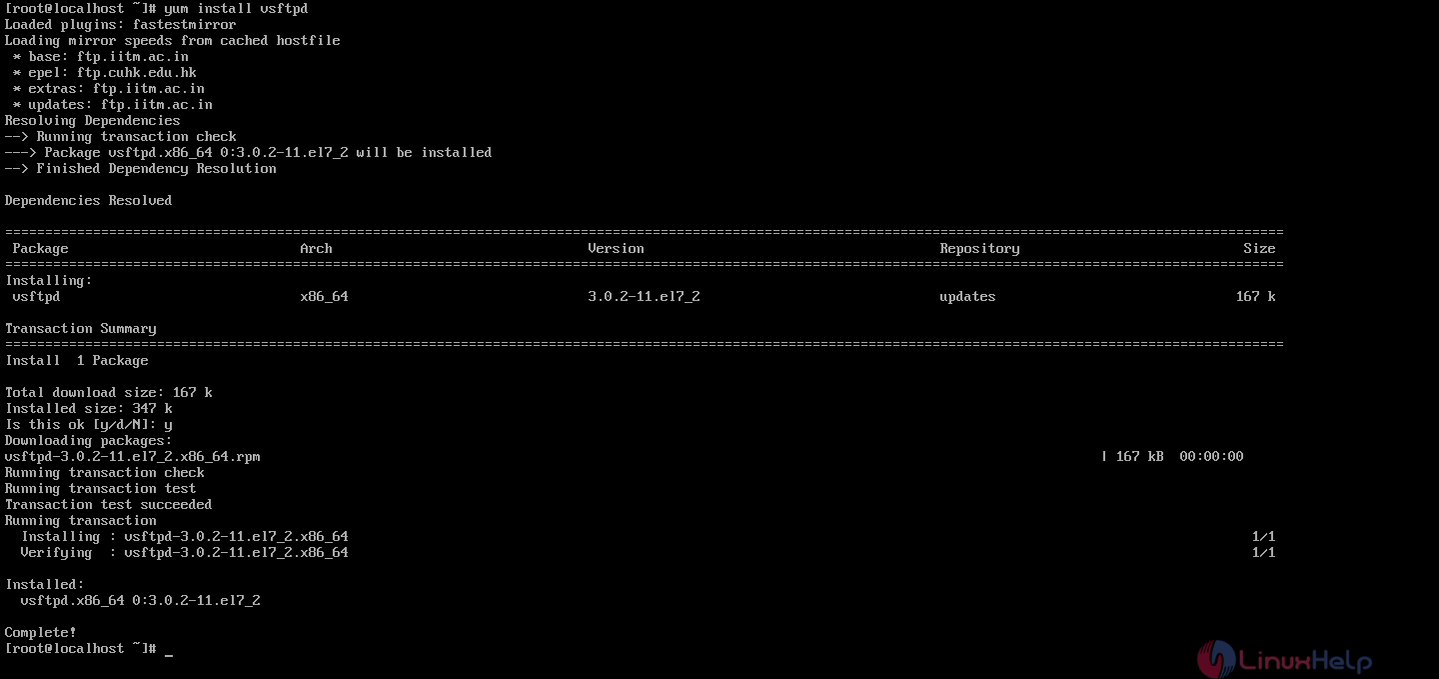
VSFTPD stands for Very Secure File Transfer Protocol Daemon is a FTP server for UNIX-like System. It is one of the most efficient and secure FTP Server.
[root@localhost ~]# yum install vsftpd
Edit the configuration file ‘ /etc/vsftpd/vsftpd.conf‘
[root@localhost ~]# vi /etc/vsftpd/vsftpd.conf
Edit a few fields and leave other as it is
anonymous_enable=NO
local_enable=YES
write_enable=YES
chroot_local_user=YES
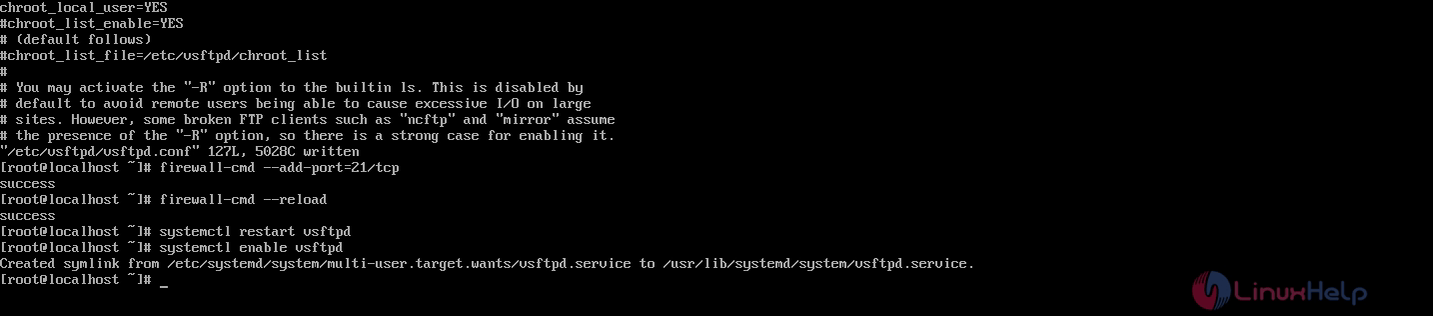
Next restart vsftpd and enable to start at boot time.
[root@localhost ~]# systemctl restart vsftpd
[root@localhost ~]# systemctl enable vsftpd
Install and Configure sudo
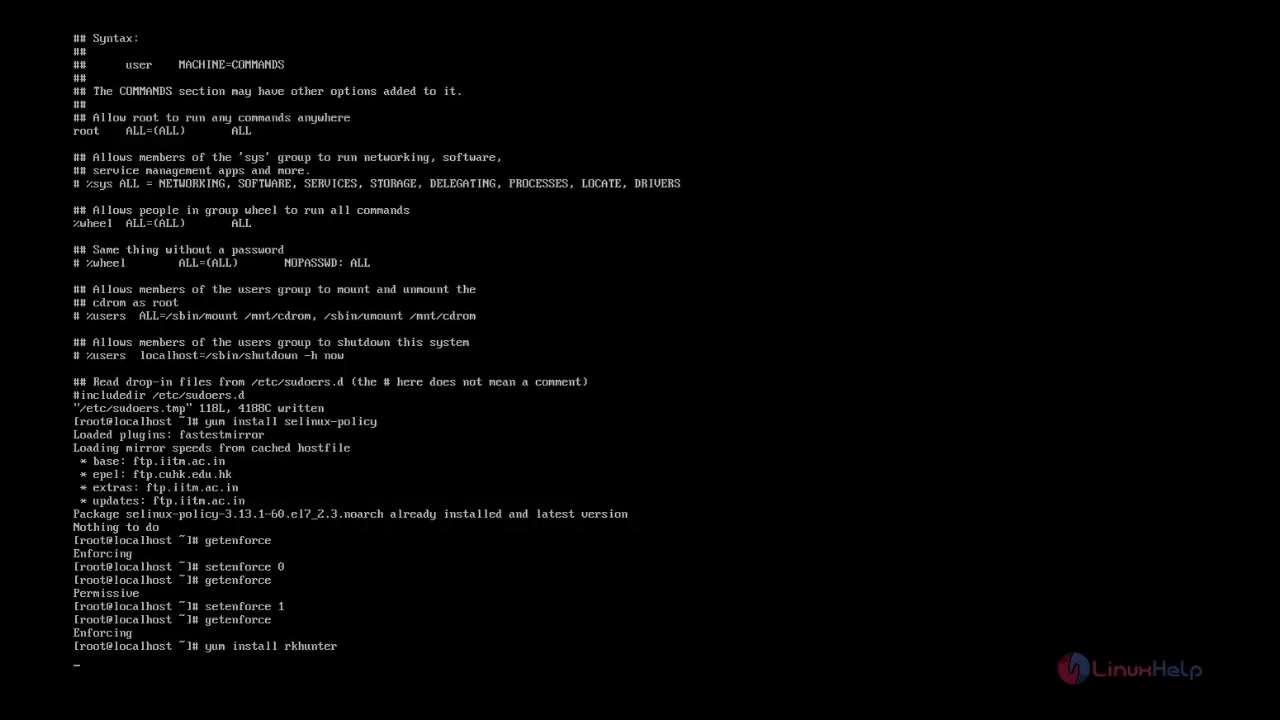
sudo is commonly called as super do is a program for UNIX-like operating system to execute a program with the security privileged of another user.
To configure sudo
[root@localhost ~]# vi sudo
Uncomment the wheel group configuration line to make the wheel group users to run all commands

Install and Enable SELinux
SELinux stands for Security-Enhanced Linux is a security module at kernel level.
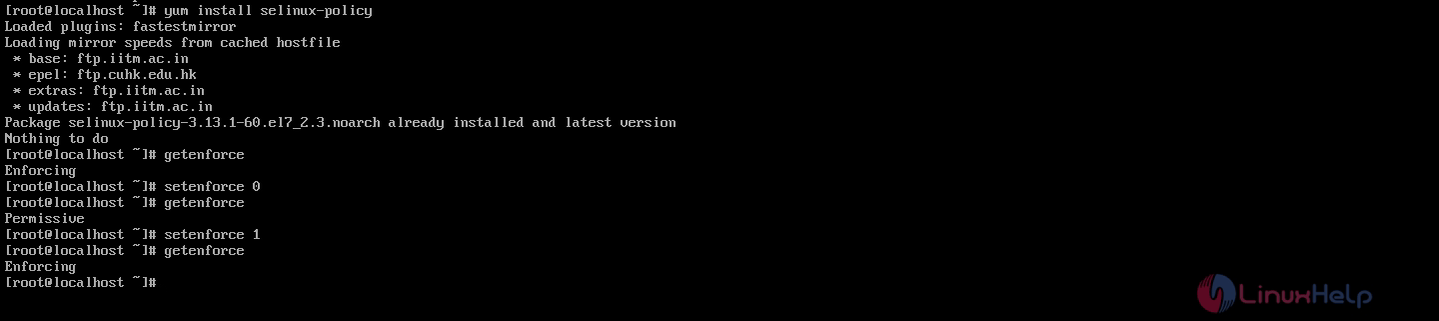
To install
[root@localhost ~]# yum install selinux-policy
Check SELinux Mode.
[root@localhost ~]# getenforce
For debugging, set selinux mode to permissive temporarily. No need to reboot.
[root@localhost ~]# setenforce 0
After debugging set selinux to enforcing again without rebooting.
[root@localhost ~]# setenforce 1
Install Rootkit Hunter
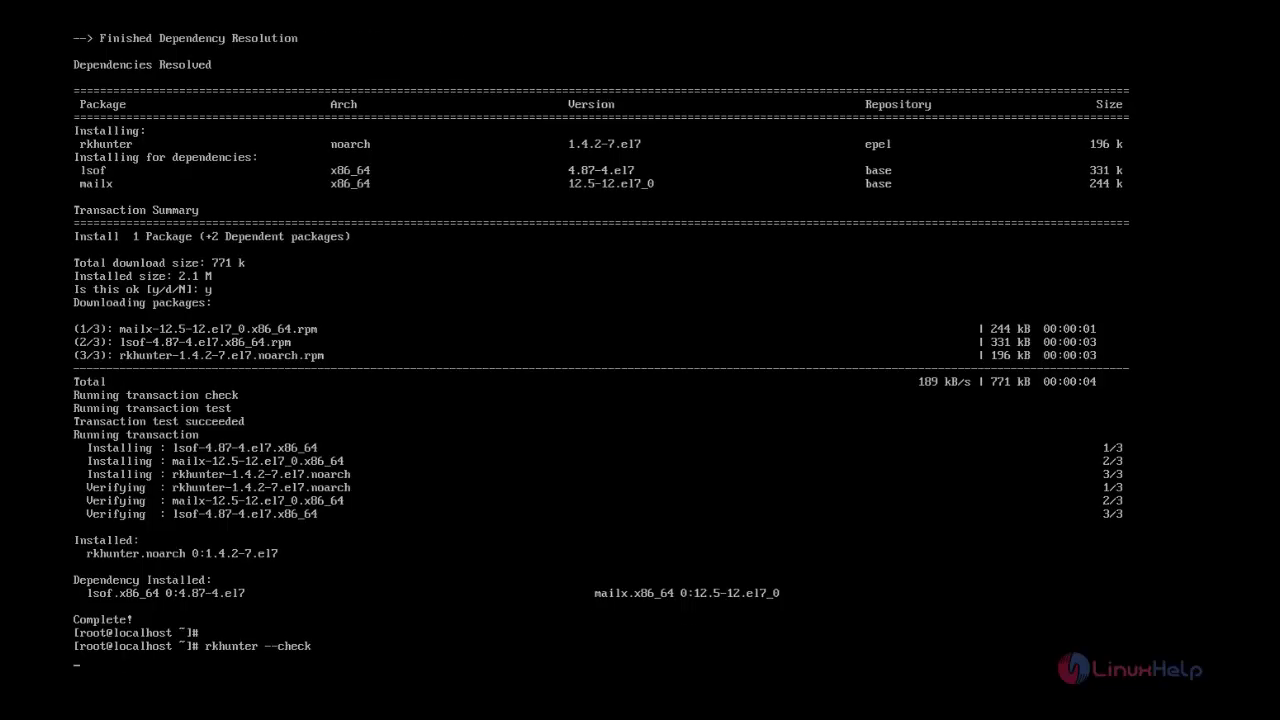
Rootkit Hunter abbreviated as Rkhunter is an application that scan rootkits and other potentially harmful files in Linux systems.
To install
[root@localhost ~]# rkhunter
To scan harmful files in linux systems
[root@localhost ~]# rkhunter --check
Comments ( 0 )
No comments available